

Description
Download WinSnap Portable Edition – Free, Secure Screen Capture Tool for Windows & Mac
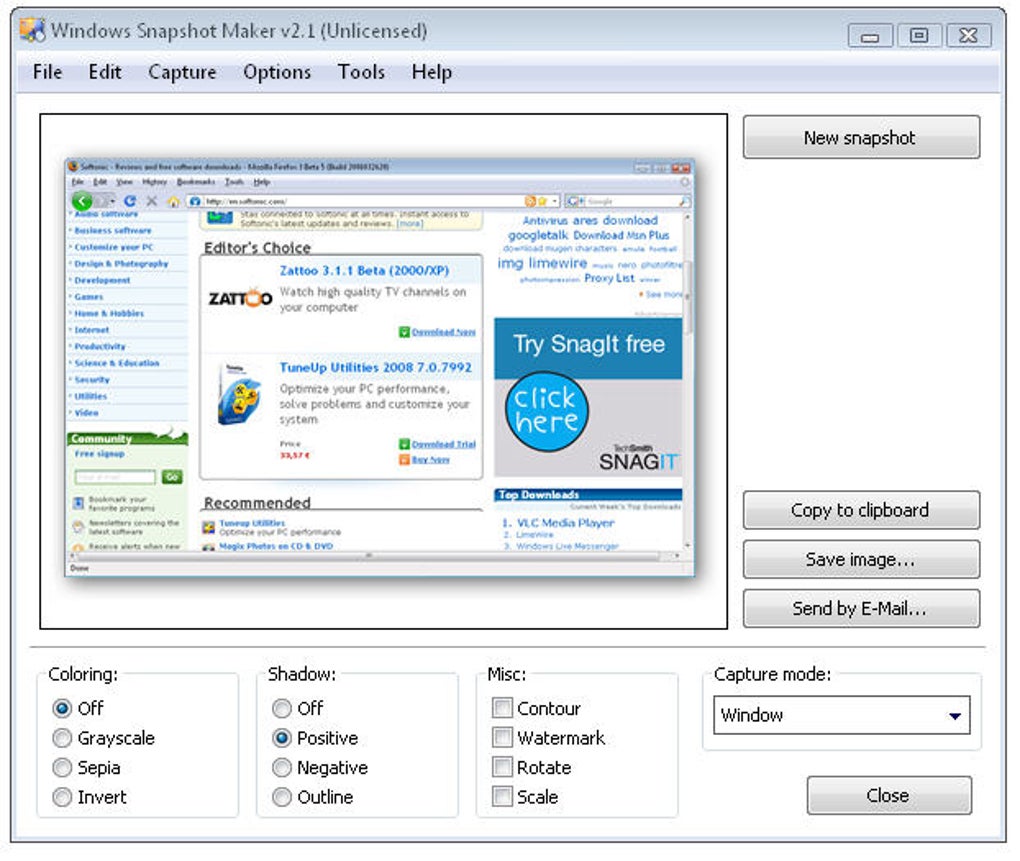
WinSnap Portable Edition is a lightweight, no-install screen capture software designed for users who need quick, reliable screenshot tools on the go. Unlike traditional applications that require installation and registry modifications, WinSnap Portable runs directly from a USB drive or external storage, making it ideal for shared computers, public workstations, or personal use across multiple devices. With its intuitive interface and powerful capture modes, this portable tool allows you to capture full screens, specific windows, or custom regions with precision. It supports advanced effects like drop shadows, borders, sepia tones, and watermarks—perfect for enhancing your screenshots for presentations, documentation, or social media. The software saves images in popular formats such as PNG, JPEG, BMP, and GIF, and offers instant sharing via email or clipboard copy. Whether you're a student, professional, or content creator, WinSnap Portable Edition delivers a seamless screenshot experience without the hassle of setup.
Key Features of WinSnap Portable Edition
WinSnap Portable Edition stands out in the crowded screenshot tool market thanks to its unique blend of functionality, portability, and ease of use. One of its most notable features is the ability to run without installation—perfect for users who frequently switch between computers or work in environments where software installation is restricted. The application avoids writing to the Windows registry, ensuring a clean footprint and full compatibility with any system it's used on. This makes it a secure and reliable choice for both personal and professional use.
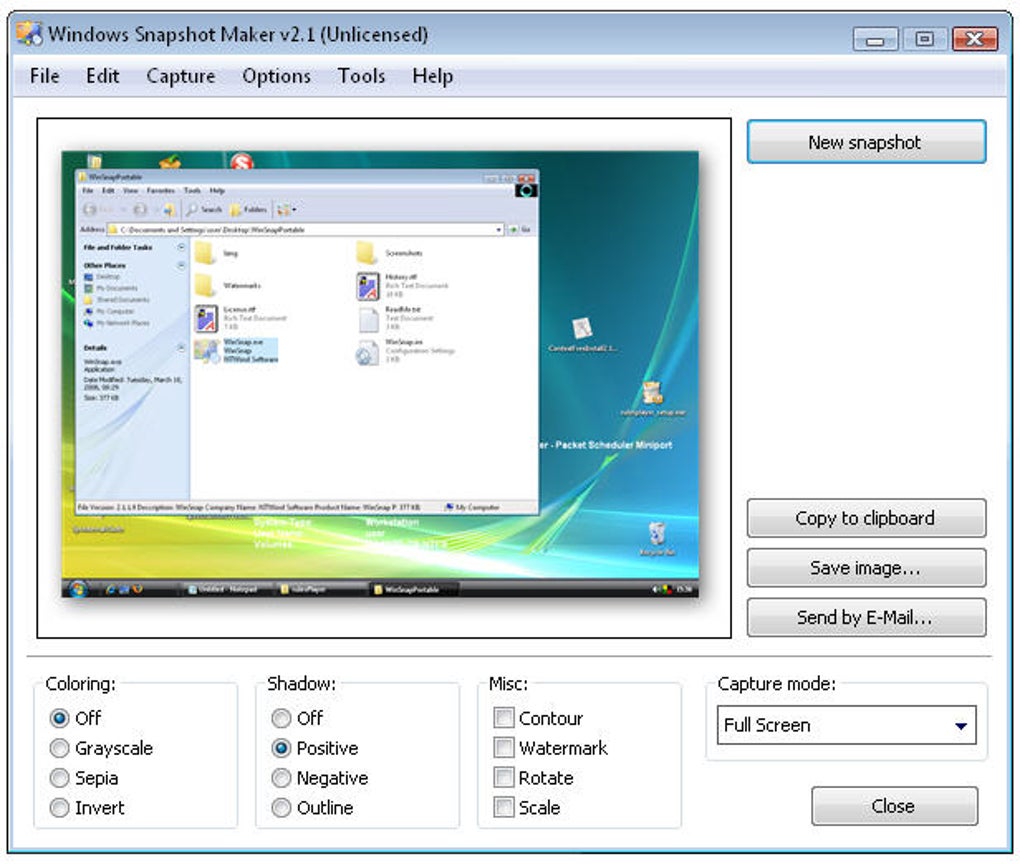
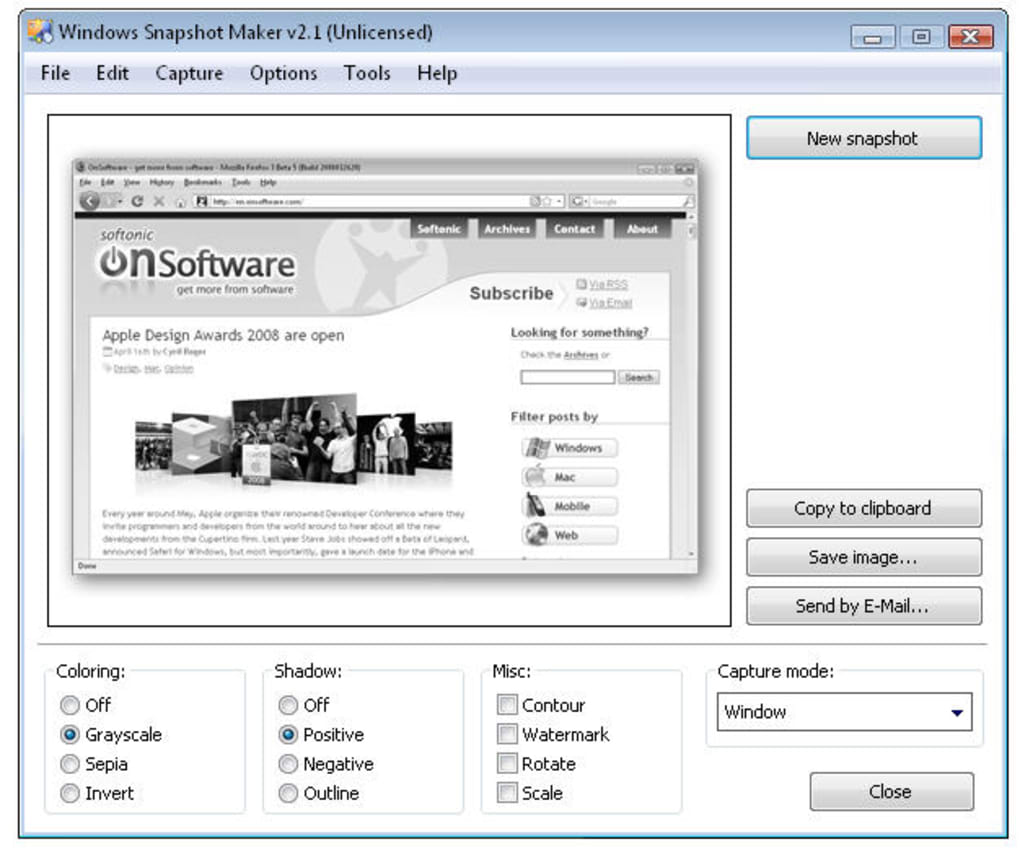
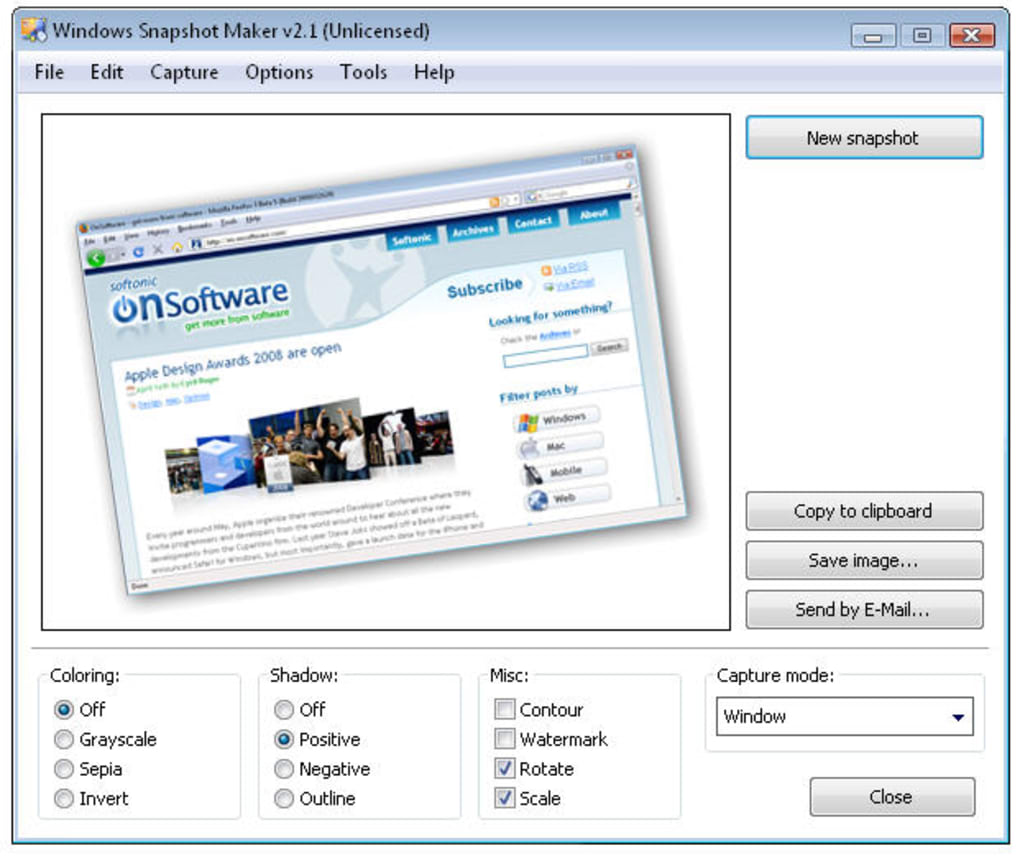
Another powerful feature is its flexible capture modes. You can capture the entire screen, a specific window, or a custom region with pixel-perfect accuracy. The software also includes a delayed capture option, which gives you time to open menus or perform actions before the screenshot is taken—ideal for capturing dialog boxes or complex UI elements. Once captured, you can apply various visual enhancements directly within the app. These include drop shadows, borders, sepia filters, and watermark overlays. While watermark customization is limited to image-based overlays (not text), the ability to add your logo or brand image to screenshots adds a professional touch.
For file management, WinSnap Portable supports multiple output formats including PNG, JPEG, BMP, and GIF, ensuring compatibility with most platforms and applications. You can also set up automatic saving to a designated folder, send screenshots via email directly from the app, or copy them to the clipboard instantly. The interface is clean and user-friendly, with customizable toolbar layouts and keyboard shortcuts that boost productivity. With regular updates addressing bugs and improving compatibility—such as fixes for Windows 8 Developer Preview and network folder saving—WinSnap Portable remains a dependable tool for modern users.
How to Install and Use WinSnap Portable Edition
Installing and using WinSnap Portable Edition is refreshingly simple, thanks to its portable nature. There’s no need to download an installer or run setup wizards. Instead, simply download the portable ZIP file from the official website, extract it to your USB drive, external hard drive, or any preferred folder on your computer. Once extracted, locate the winsnap.exe file and double-click it to launch the application. That’s it—you’re ready to start capturing screenshots immediately.
Upon launching, you’ll be greeted with a minimalistic interface that’s easy to navigate. The main toolbar includes buttons for capturing full screen, active window, or custom region. You can also access advanced options like delayed capture, automatic file naming, and effect application. To take a screenshot, simply click the desired capture button and use your mouse to select the area. The software will instantly capture and open the image in the built-in editor, where you can apply effects, crop, or annotate before saving.
For users who prefer keyboard shortcuts, WinSnap Portable supports customizable hotkeys. You can assign shortcuts for each capture mode, making the process even faster. After editing, you can save the image directly to your preferred folder, send it via email using your default client, or copy it to the clipboard for immediate pasting into documents or messaging apps. The software remembers your last settings, so you don’t need to reconfigure preferences every time you use it. This consistency across sessions enhances the overall user experience and makes WinSnap Portable ideal for daily use.
Compatibility & System Requirements
WinSnap Portable Edition is designed to run smoothly on a wide range of Windows operating systems, including Windows 7, Windows 8, Windows 10, and Windows 11. It also maintains backward compatibility with older systems such as Windows XP and Windows 2000, although some advanced features may be limited on these platforms. The software is optimized for both 32-bit and 64-bit architectures, ensuring broad accessibility across different hardware configurations.
One of the key advantages of this portable version is its minimal system footprint. It doesn’t require any additional runtime libraries or dependencies, making it lightweight and fast. The application runs entirely from memory, which means it won’t slow down your system or interfere with other programs. This is especially beneficial when using it on older or low-spec machines.
While the software is primarily designed for Windows, there is no official Mac, Android, or iOS version available. However, Mac users can run WinSnap Portable via compatibility layers like Wine or virtual machines, though performance may vary. For mobile users, alternative tools like LightShot or oCam are recommended for iOS and Android platforms. That said, the true strength of WinSnap Portable lies in its ability to work seamlessly on any Windows PC without installation—perfect for IT professionals, educators, and remote workers who need a consistent screenshot tool across multiple devices.
Pros and Cons of WinSnap Portable Edition
- Pros:
- Runs from USB or external drive—no installation required
- Secure and registry-free—ideal for shared or public computers
- Multiple capture modes: full screen, window, region, delayed
- Advanced visual effects: drop shadows, borders, sepia, watermark overlays
- Supports popular image formats: PNG, JPEG, BMP, GIF
- Instant sharing via email and clipboard copy
- Lightweight and fast, minimal system impact
- Regular updates with bug fixes and compatibility improvements
- Cons:
- Watermark customization limited to image files (no text support)
- No native support for Mac, Android, or iOS
- Interface may feel outdated compared to modern apps
- Advanced editing tools are limited—no annotation or drawing features
- Only available in English, German, and Slovenian (limited language support)
Frequently Asked Questions (FAQ)
Can I use WinSnap Portable Edition on a public computer?
Yes, absolutely. Since WinSnap Portable doesn’t require installation or registry changes, it’s perfect for use on public or shared computers. Simply copy the portable folder to a USB drive and run it directly from there—no trace left behind.
Is WinSnap Portable Edition free to download and use?
Yes, WinSnap Portable Edition is available as a free download. While the core features are fully functional, some advanced tools may require a paid license for full access. However, the free version is more than sufficient for most users.
Does WinSnap support Mac or mobile devices?
Currently, WinSnap Portable Edition is only available for Windows. There is no official version for Mac, iOS, or Android. However, Mac users can attempt to run it via compatibility tools like Wine, though results may vary.
How do I customize the capture hotkeys?
Go to the Options menu, select Hotkeys, and assign your preferred keyboard shortcuts for each capture mode. You can also disable or reassign default keys to avoid conflicts.
Can I apply text watermarks to my screenshots?
No, the watermark feature only supports image overlays. You cannot add text-based watermarks directly in the app. However, you can manually add text using an image editor after capture.
Why do I get a “dwmapi.dll not found” error?
This error was common on older systems like Windows XP and 2000. The latest version of WinSnap Portable includes a fix for this issue. Make sure you’re using the most recent release from the official site to avoid the error.
Final Verdict: Is WinSnap Portable Edition Worth It?
WinSnap Portable Edition is an excellent choice for anyone who needs a reliable, portable screenshot tool without the hassle of installation. Its ability to run from a USB drive makes it perfect for students, IT support staff, remote workers, and anyone who uses multiple computers. The combination of flexible capture modes, visual effects, and instant sharing options delivers a powerful yet simple experience.
While it lacks advanced editing tools and text watermarking, its core functionality is rock-solid and well-optimized. With regular updates and strong compatibility across Windows versions, it remains a top contender in the portable software space. If you’re looking for a secure, free, and easy-to-use screen capture tool that works anywhere, WinSnap Portable Edition is a must-download.
Download WinSnap Portable Edition today and take control of your screenshots—anytime, anywhere!
Guides & Tutorials for WinSnap Portable Edition
How to install WinSnap Portable Edition
- Click the Preview / Download button above.
- Once redirected, accept the terms and click Install.
- Wait for the WinSnap Portable Edition download to finish on your device.
How to use WinSnap Portable Edition
This software is primarily used for its core features described above. Open the app after installation to explore its capabilities.
User Reviews for WinSnap Portable Edition 0
No reviews found





